Calendar In Service Portal
ServiceNow Series

Introduction
Ever wished your ServiceNow Service Portal had a sleek, interactive calendar to manage events, shifts, or bookings? Well, wish no more! FullCalendar is here to save the day. 🎉
In this blog, we’ll dive into integrating FullCalendar with ServiceNow, making your portal more dynamic and visually appealing. No more struggling with clunky lists or endless tables—let’s put everything on a calendar like civilized people! 📅
By the end of this guide, you’ll know how to:
✅ Integrate FullCalendar into ServiceNow
✅ Fetch and display records dynamically
✅ Customize it to match your portal’s needs
So grab a coffee ☕ (or a debugging tool 🛠️), and let’s get started! 🚀
Full Calendar
What is FullCalendar?
FullCalendar is a powerful and flexible JavaScript library that lets you create interactive and feature-rich calendars for web applications. It’s widely used for scheduling events, bookings, task management, and more. Whether you need a simple calendar or a complex scheduling system, FullCalendar has got you covered.
Why Use FullCalendar?
✅ Highly Customizable – Supports different views (month, week, day, list) and can be styled to match your design.
✅ Event Management – Allows dynamic event creation, drag-and-drop, and real-time updates.
✅ API & Integration – Easily integrates with backend services like ServiceNow, fetching and updating data seamlessly.
✅ Resource Management – Ideal for scheduling meetings, managing employee shifts, or tracking reservations.
In short, FullCalendar is the Swiss Army knife 🛠️ of web-based calendars. Now, let’s see how to get it working with ServiceNow! 🚀
Integrate FullCalendar Widget in ServiceNow
All right, fire up your PDI or Instance.
Navigate to Service Portal → Widgets

Click on New to Create a New Widget.

Name your Widget as your choice [Ex: ServiceNow Calendar] and save it.
Scroll Down to Dependencies and Click on New

- Name the dependency as per your choice [Ex: Calendar] and save it.

Now, navigate to Google and search for the Full Calendar Library

Click Docs

Click on Introduction

Click Getting Started

Click Initializing with script tags

Click jsdelivr

Copy the Link present in the Script Tag
<script src="https://cdn.jsdelivr.net/npm/fullcalendar@6.1.15/index.global.min.js"></script>

- Navigate back to the dependency created and create a new JS Include record.

- Paste the link copied from the script tag in the JS Include record.

- Now, copy and paste the code below.
HTML:
<div>
  <div id="calendar"></div>
</div>
Client Script:
api.controller = function () {

    var c = this;
    var calendarEl = document.getElementById("calendar");

    var calendar = new FullCalendar.Calendar(calendarEl, {
        initialView: "dayGridMonth",
    });

    calendar.render();
};
Output
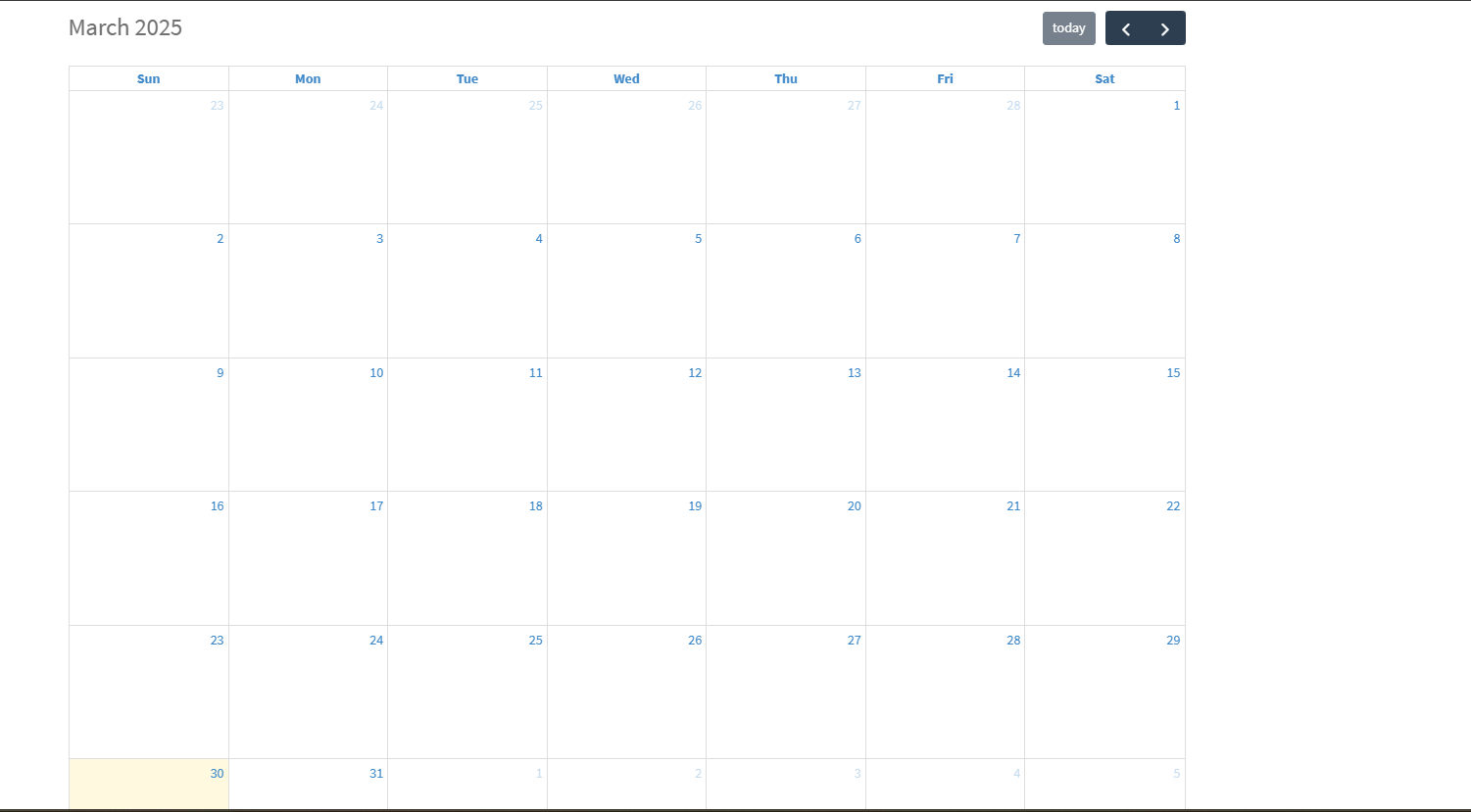
Your output should look like this.